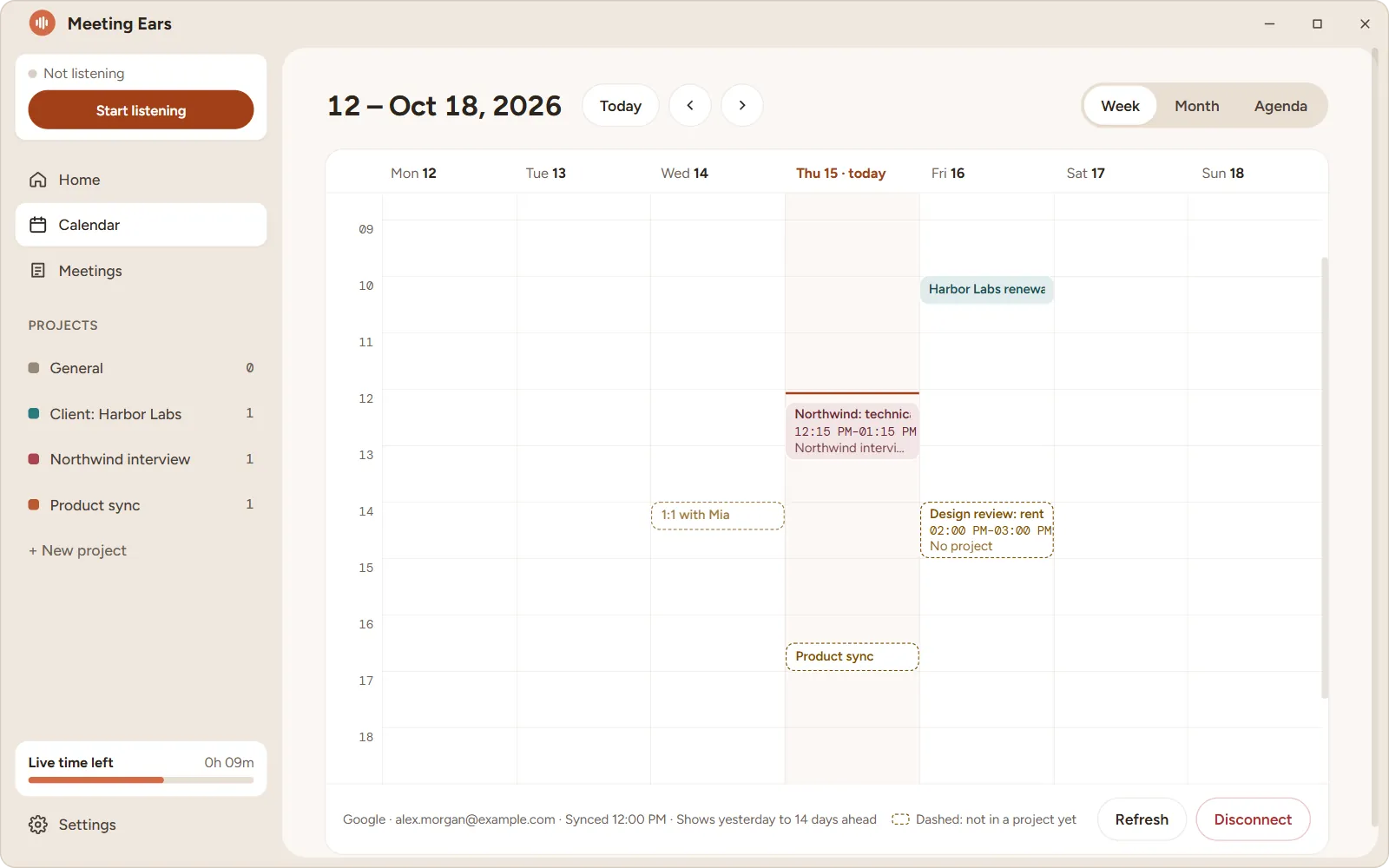
The Calendar page in the workspace shows your meetings from yesterday to 14 days ahead, so you can choose the right context before a call and start listening from it. Home shows the next three under Coming up.
Connect a calendar
- Connect Google Calendar opens Google in your browser. Meeting Ears asks only to read events (
calendar.events.readonly); it can’t change your calendar. - Or paste the secret iCal address of a calendar (in Google Calendar: Settings → your calendar → Integrate calendar → Secret address in iCal format). Treat this address like a password.
- The calendar is read by the app on your computer. Its events and the access to it are kept on this PC, the access encrypted by Windows, and are not sent to our servers.
- Disconnect removes the access from this computer.
During early access Google may ask you to connect again every 7 days. The iCal address doesn’t have this limit.
Week, Month and Agenda
Switch between Week, Month and Agenda; Today and the arrows move through time. A meeting that isn’t in a project yet has a dashed outline. Click a meeting to open it beside the calendar: Join on … when it has a call link, the organizer, attendees, place and notes of the invitation, and Open meeting once you have recorded it. In Agenda, recorded meetings are marked In History.
The assistant will use
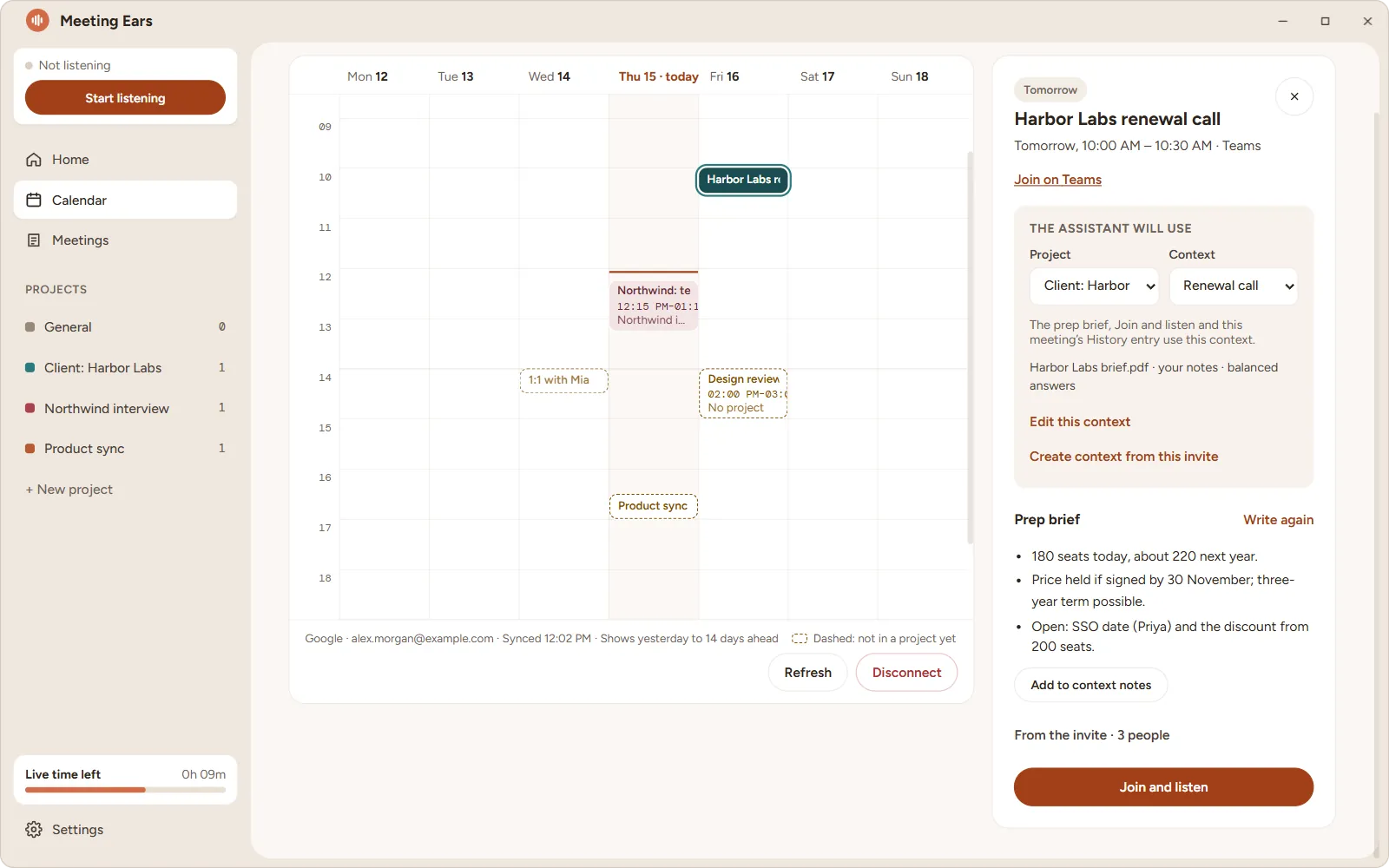
- Under The assistant will use, choose the meeting’s Project and Context. The prep brief, Join and listen, a reminder for it and the saved meeting all use that choice.
- A meeting with no project uses the context that is active in the overlay.
- Create context from this invite makes a new context filled from the invitation: title, organizer, attendees and the invitation notes. + New context… adds one in the chosen project, and Edit this context opens it in the project.
Prep brief
Prep brief asks the service for a few points to prepare. It sends the meeting’s title, description, start time and the other attendees’ names, with the notes of the chosen context. Add to context notes keeps the points for the answers during the call. A prep brief uses your AI allowance.
Join and listen
Join and listen opens the call link and starts listening in the overlay with that meeting’s context. A meeting without a link has Listen instead. One meeting runs at a time: while one is running, the panel says “A meeting is already running in the overlay.”
Reminders
- Two minutes before a meeting with a video link, a Windows notification appears. Click it to start listening with the meeting’s project and context.
- Reminders only appear while Meeting Ears is running.
- Windows notifications can show up in a screen share, so by default they say only “Meeting starts in 2 min”. Settings → Calendar → Show meeting title in reminders changes that; Meeting reminders turns them off.