
Before the meeting: one slim bar
The overlay starts as a pill. It shows your next booked meeting (or Ready), a chip with the project and context the answers will use, and Start listening. Click the chip to switch to another project or context. The sliders button opens Listening settings, and the window button opens the workspace.
During the meeting: answer cards
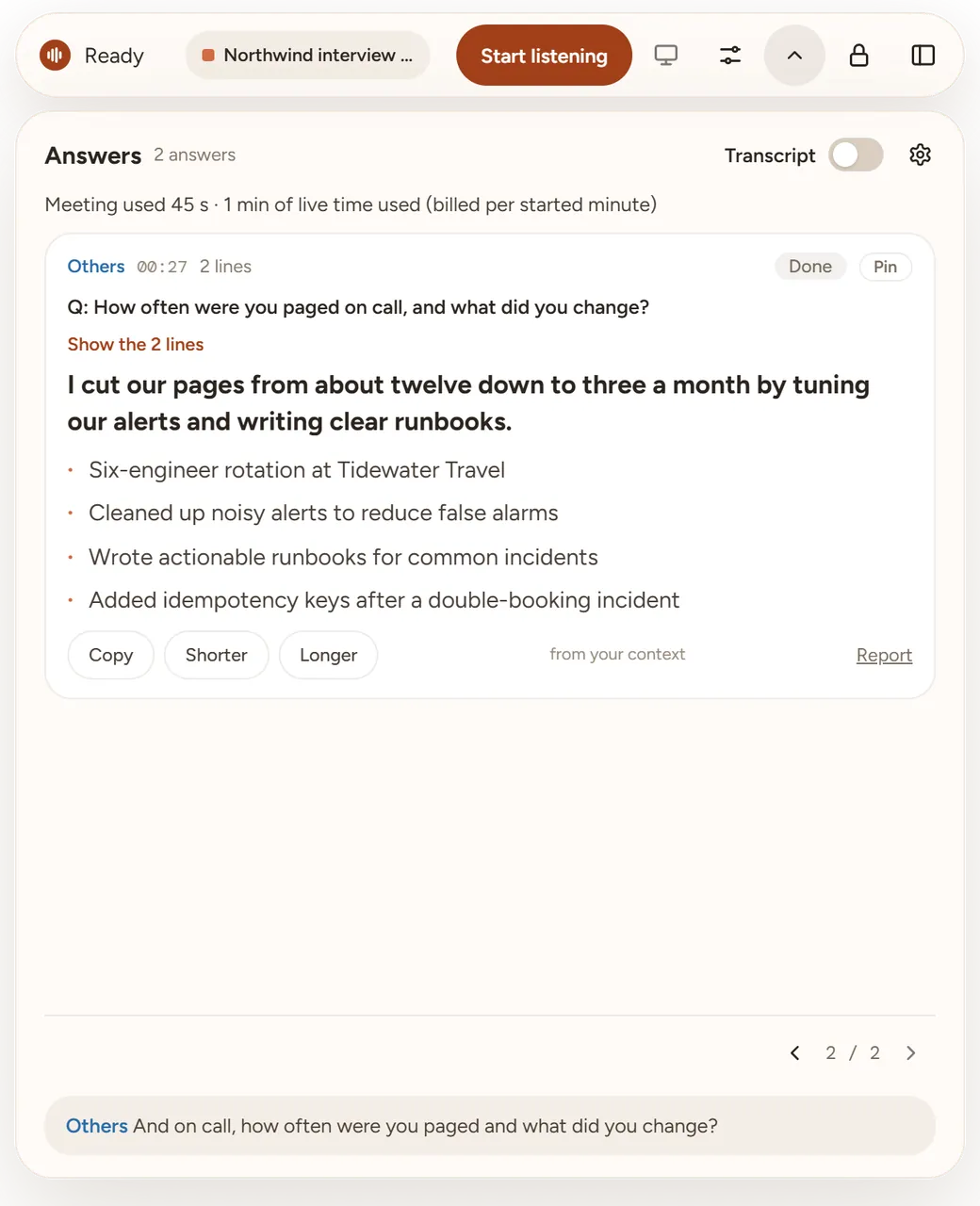
- The bar shows how long you’ve been listening, the context chip and Stop. The answers open underneath it.
- Meeting Ears waits until the speaker has finished their turn, then answers the whole question once. The card shows it as Q: …, with the lines it came from one click away.
- The line to say first arrives first: 4.7 seconds after the end of the question (median, in our live test). The whole answer takes 5 to 7 seconds.
- Copy, Shorter and Longer are on every finished card, and Pin keeps one in view. The arrows step back through earlier answers.
- If an answer is wrong or harmful, Report is on the card too.
Prepared answers come first
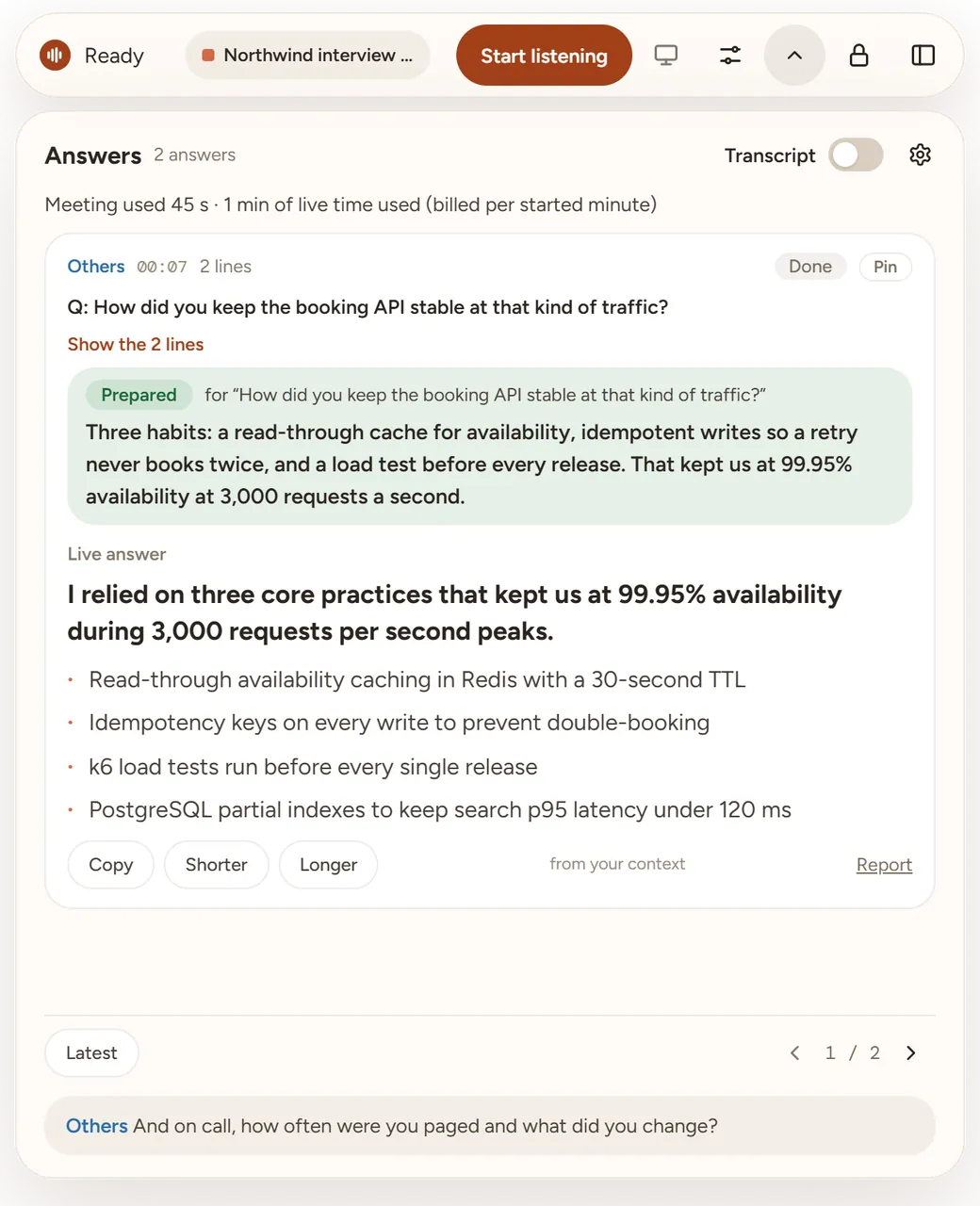
When a question matches one of the prepared answers in your context, that answer is on the card at once, marked Prepared with the question it was written for. A live answer is still written under it, labelled Live answer. The matching runs on your PC, in English and Bulgarian. You write and edit prepared answers in the workspace: see Projects and context.
Talking points in your own words
With the default answer style, Talking points, a card has a headline to say first and 3 to 5 short points written from your notes and documents, and it says where they came from. When a detail isn’t in your material, the answer leaves a gap such as [my notice period] for you to fill in, instead of inventing one. The other styles are Brief, Balanced and Detailed, chosen per context.
The transcript, when you want it
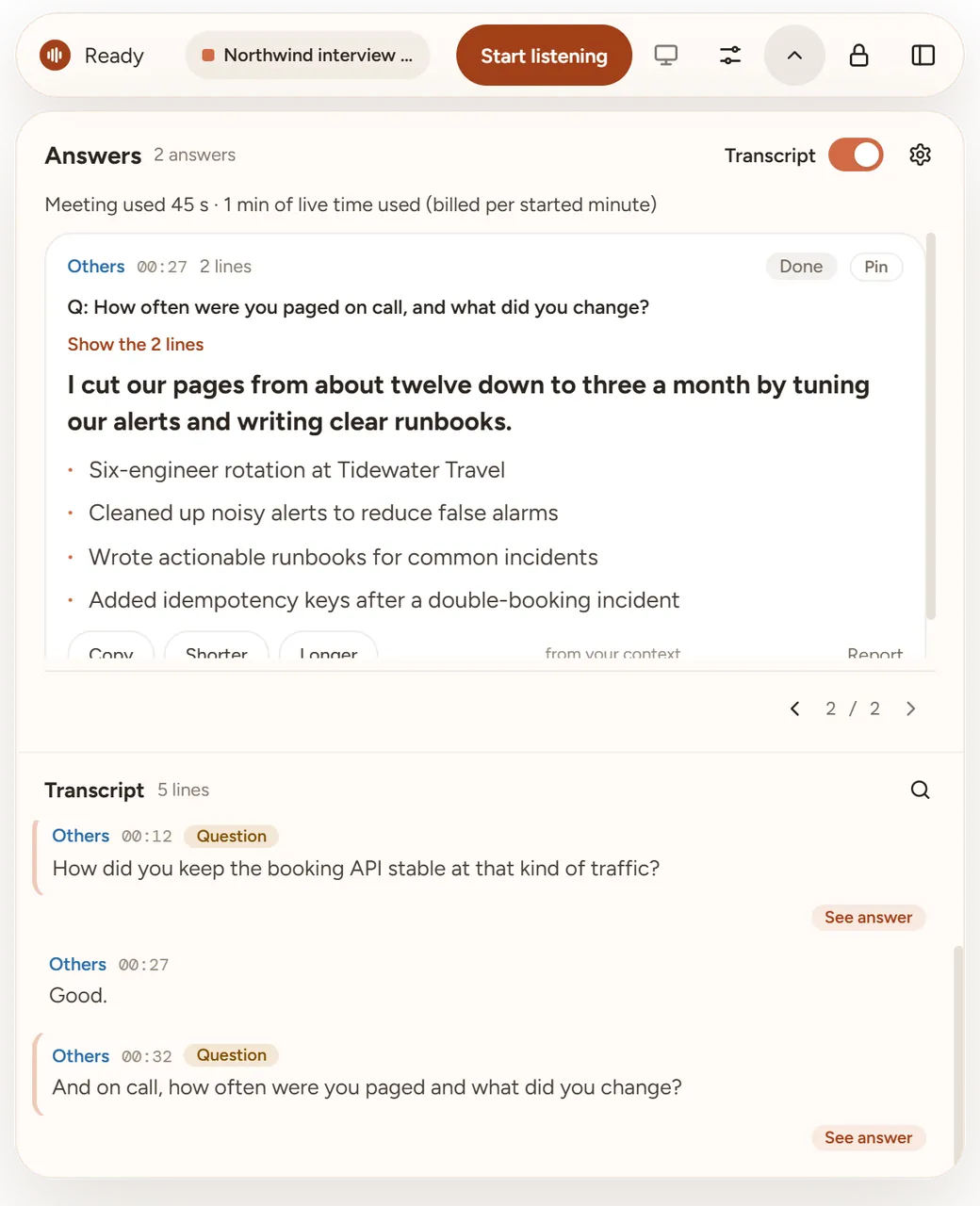
Switch on Transcript in the answers panel to see the call as text. Your microphone is You and the call is Others. Click a line, then Answer for its whole turn or Answer line for that line only. To translate, choose a language in Translate to and press Translate. Shift+click selects a range and Ctrl+click adds a line.
Answer settings
All of these are under the gear at the top right of the answers panel.
- Answer automatically: when it’s on, questions are answered as soon as the speaker finishes. When it’s off, they are only marked in the transcript and you choose what to answer.
- Questions from: Others (the default) or Everyone, which also answers questions you ask yourself. That’s useful for practice.
- Language of the meeting, for example Bulgarian + English. See Languages.
- Answer text size, 70 to 150%: Ctrl+= larger, Ctrl+- smaller, Ctrl+0 reset.
Microphone and PC sound

Meeting Ears hears two things: your Microphone (your voice) and the System audio of your PC (everyone else on the call, whatever app plays it). Both are on normally. If you switch one off under Audio and window, the pill shows a chip, Mic off or PC sound off, so you notice before the meeting instead of after it. Press the chip to turn the source back on. During a meeting the sources stay as they are; change them after stopping.
Out of sight, under your keys
- The overlay is left out of screen shares and screenshots on Windows 11 and Windows 10 (version 2004 or later).
- Ctrl Alt Shift L starts or stops listening from any app.
- Ctrl Alt Shift H shows or hides the overlay.
How to use it
- Check the context chip: it should name the project and context for this meeting.
- Press Start listening (or Ctrl Alt Shift L) when the call starts.
- When a question lands, glance at the card, say the first line, and use the points to carry on in your own words.
- Press Shorter or Longer if the answer doesn’t fit, and Pin the one you want to keep in view.
- Press Stop. The meeting is saved in Meetings, on your PC.
What stays private
While you listen, the audio, the meeting’s context and the recent transcript go to the Meeting Ears service, which uses Google Gemini to transcribe and answer, and keeps none of it. The transcript and the answers are saved only on your PC. What leaves your PC, and when.
More detail: Audio setup and Getting started.