A window of its own
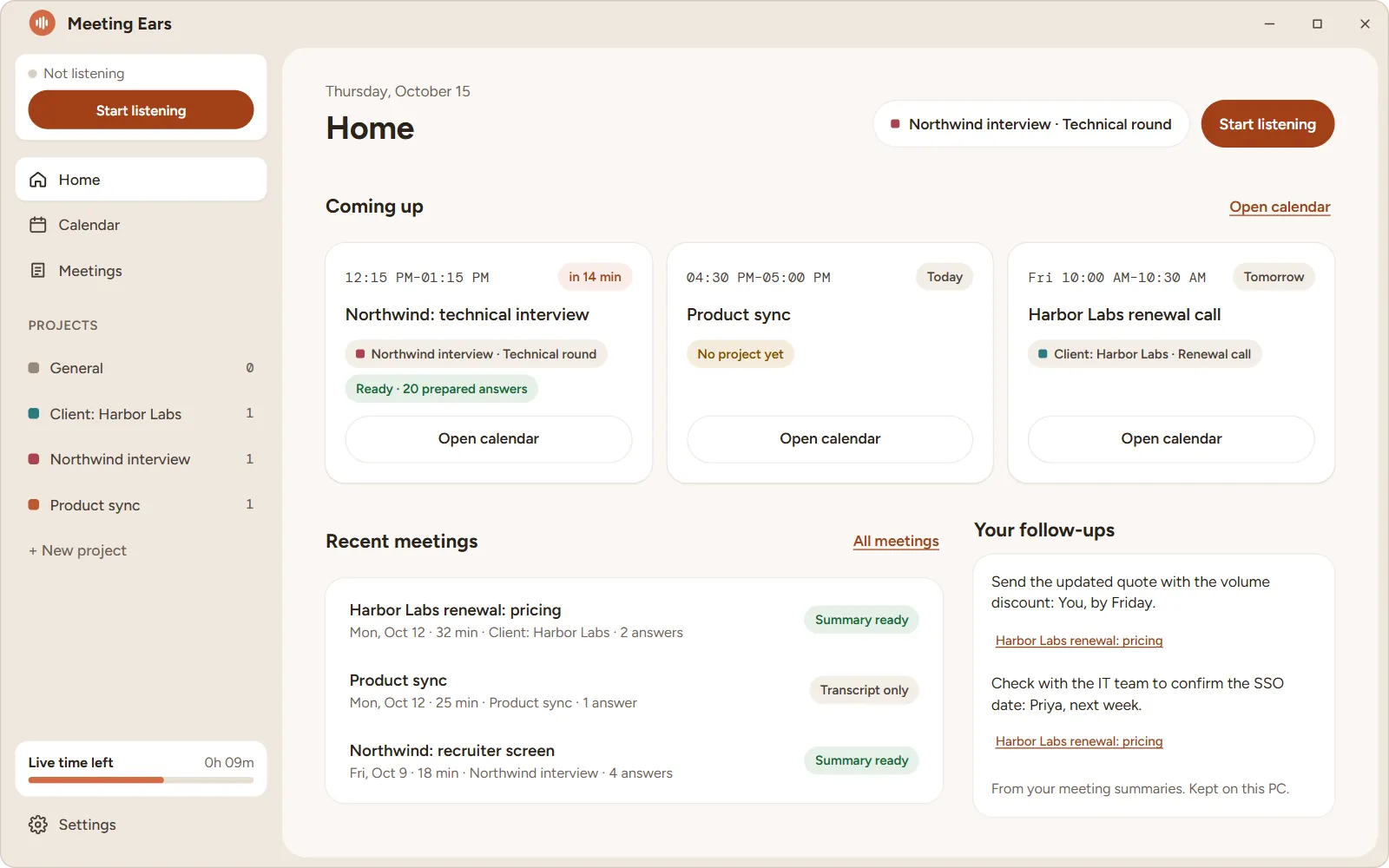
Open the workspace from the window button on the overlay, or from the taskbar. The sidebar has Start listening, Home, Calendar, Meetings, your projects with their number of meetings, + New project, the live time you have left, and Settings. Closing the workspace never stops a meeting: listening and the answers stay in the overlay.
Home
- Start listening, with the project and context the next meeting will use.
- Coming up: your next three booked meetings, each with the project and context it will use, or No project yet. A meeting whose context has prepared answers says so, for example Ready · 20 prepared answers.
- Recent meetings: the latest ones, each marked Summary ready or Transcript only.
- Your follow-ups: the action items from your meeting summaries, each with a link to its meeting.
Meetings and search
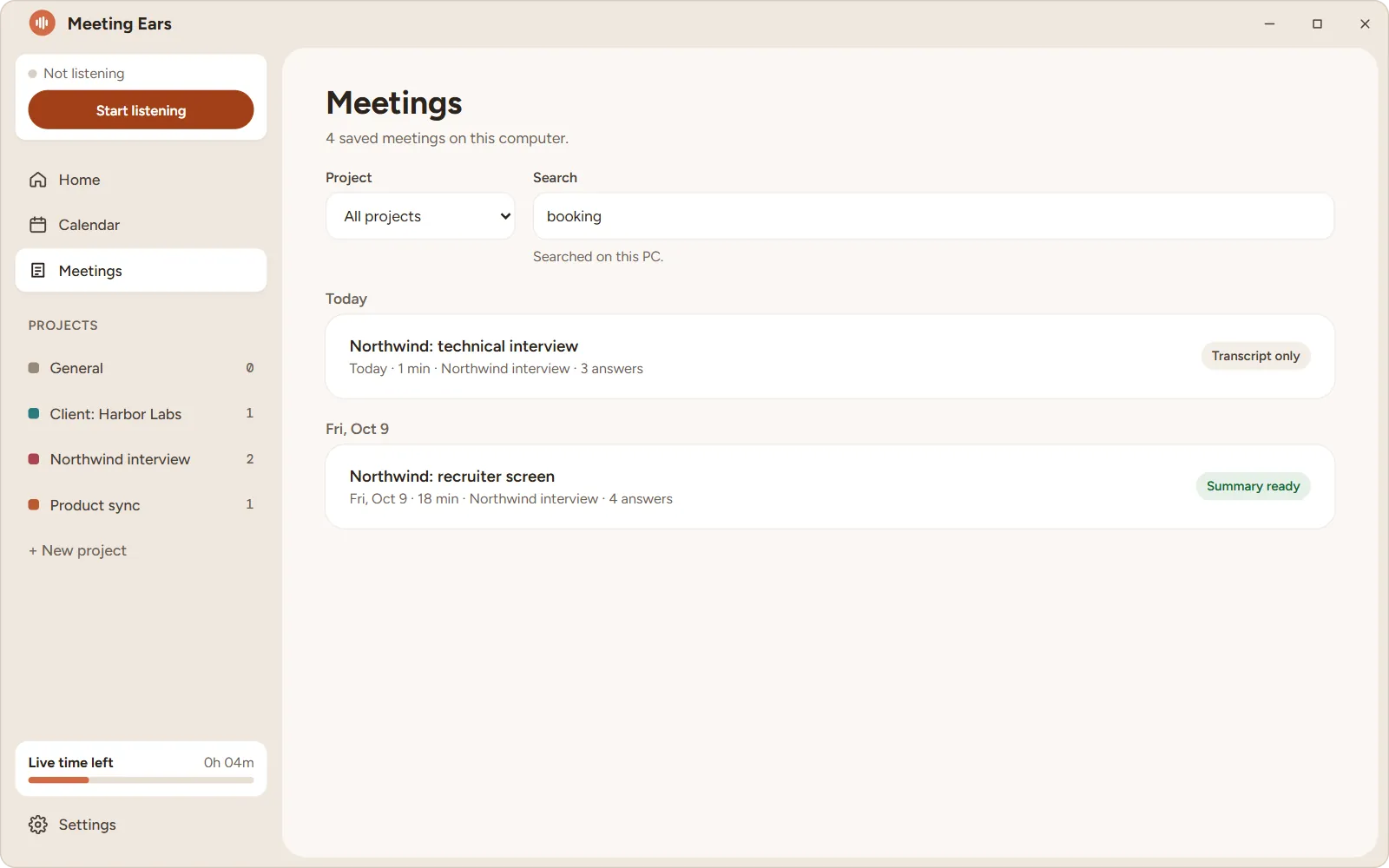
- Every saved meeting, grouped by day, with whether it has a summary yet.
- Filter by Project, and Search titles and transcripts for a name, a number or a phrase.
- Open a meeting for its summary, transcript and answers: see Meeting notes.
Settings
Your account, plan and live time, your own Gemini key, meeting reminders, and how long meetings are kept: 30 days, 90 days or forever.
How to use it
- Open the workspace from the overlay.
- On Home, look at Coming up. For a meeting with No project yet, open the Calendar and choose one.
- After a call, find it under Recent meetings, or type a name or a number in Search on Meetings.
- Open the meeting and press Debrief for a summary and a follow-up email.
What stays private
Everything in the workspace is read from files on your PC. Search runs on your PC and sends nothing, and the follow-ups on Home come from summaries saved on your PC. Like the overlay, the workspace window is left out of screen shares and screenshots.