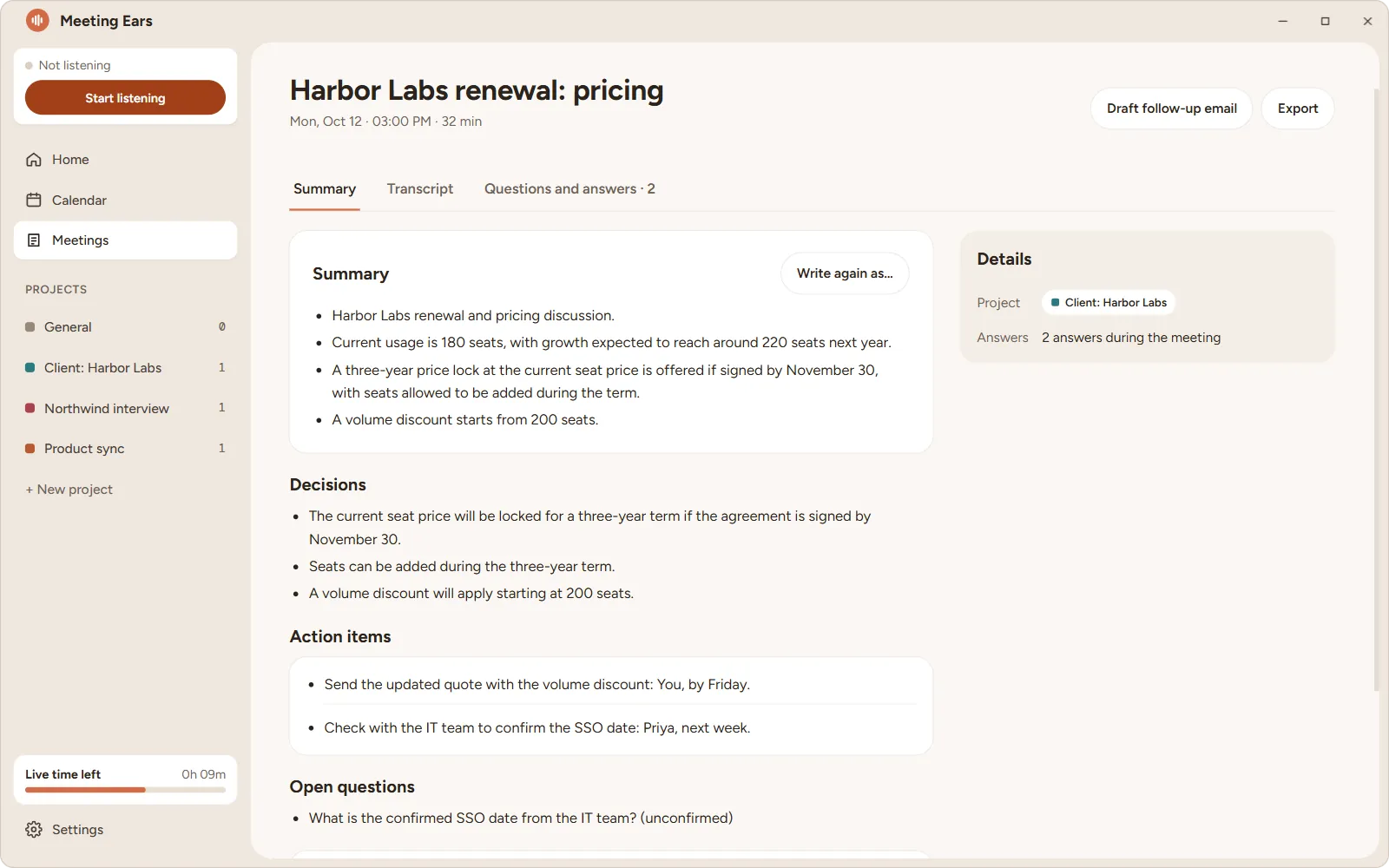
Summary, from Debrief
On a meeting’s Summary tab, choose what it was, Work meeting or Interview, and press Debrief.
- Work meeting: a summary, the decisions and the action items.
- Interview: the questions you were asked and better points to learn for next time.
- Both come with a draft follow-up email. Write again as… writes the debrief again, for example as the other kind.
The debrief is saved with the meeting, on your PC.
Follow-up email and follow-ups
- The follow-up email is under the summary, with Copy.
- Draft follow-up email at the top of the page opens a draft in your own mail app, addressed to the attendees of the calendar meeting. Nothing is sent until you send it.
- The action items also appear on Home under Your follow-ups, each with a link back to its meeting.
Transcript
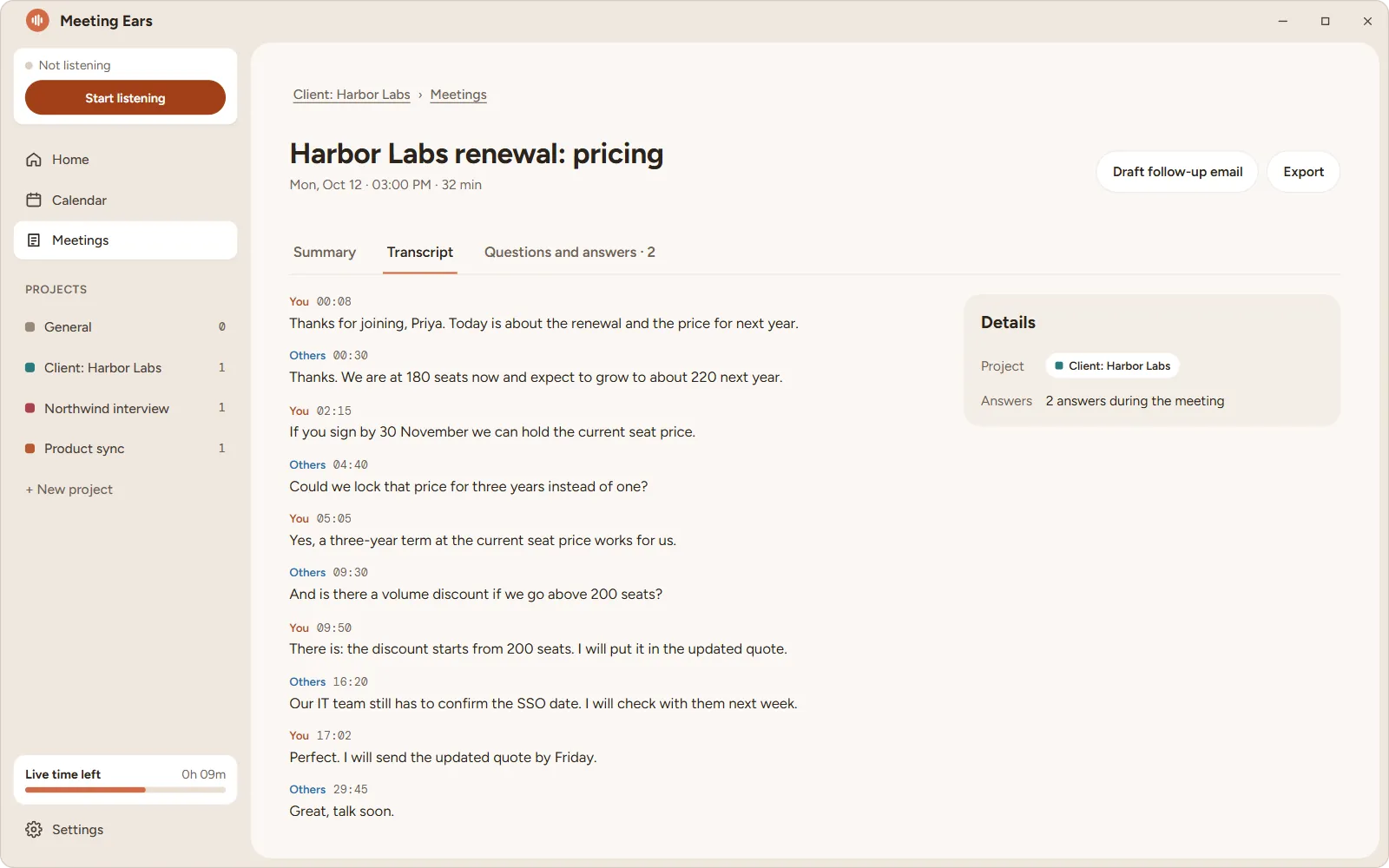
The Transcript tab has every line of the meeting, with who said it (You or Others) and when.
Questions and answers
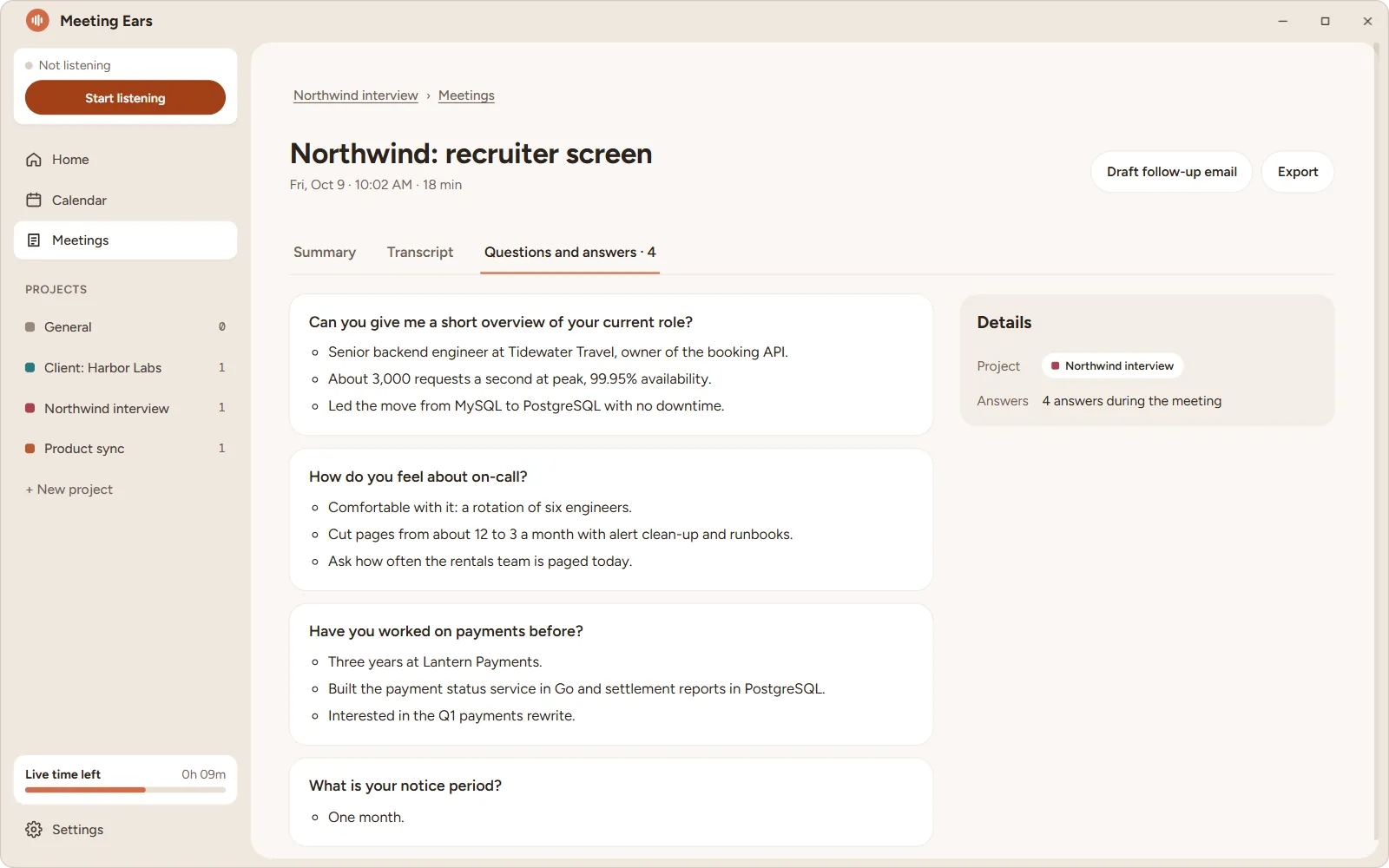
Questions and answers lists each question answered during the meeting, with the points you were given.
Details and Export
The Details panel shows the meeting’s project, its context, the calendar meeting and how many answers it had. Export saves the meeting as a Markdown file wherever you choose. Meetings are kept for as long as Settings says: 30 days, 90 days or forever.
How to use it
- After the call, open the meeting from Home or Meetings.
- On Summary, choose Work meeting or Interview and press Debrief.
- Read the decisions and action items, then press Draft follow-up email or Copy the email.
- Need an exact quote? Open Transcript, or search for it on Meetings.
What stays private
The transcript, the answers and the summary are stored only on your PC. Debrief, and only when you press it, sends this one meeting’s notes, built on your PC from its questions, answers and transcript, to the Meeting Ears service, which writes the debrief and stores nothing. The first time, a notice tells you this and asks you to confirm. The follow-up draft opens in your own mail app, and Export writes a file on your PC.