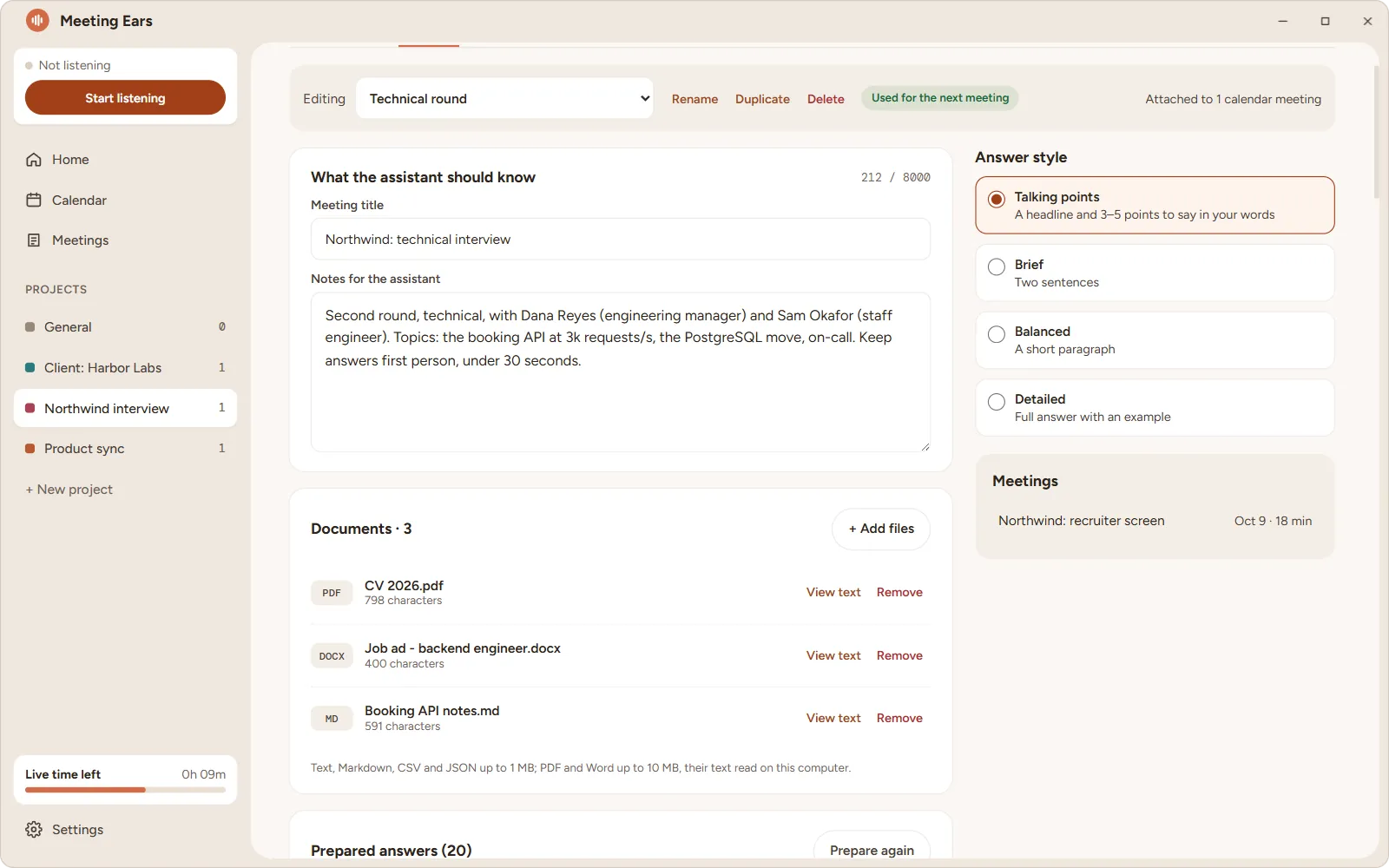
Projects and contexts
A project, such as “Northwind interview” or “Client: Harbor Labs”, keeps its meetings and one or more contexts, for example “Technical round” and “HR round”. The project page has two tabs, Meetings and Context. In Context, choose what you’re Editing. You can Rename, Duplicate or Delete a context, add a + New context for another meeting type, and press Use for the next meeting. Changes are saved as you type.
What the assistant should know
A Meeting title and Notes for the assistant: who you meet, what you sell or did, the numbers you may be asked about, and your goal.
Documents
+ Add files takes PDF and Word files up to 10 MB, and text, Markdown, CSV and JSON up to 1 MB. Their text is read on your PC, and you see what will be added before it is. View text shows what the assistant gets, and you can correct it there.
Prepared answers
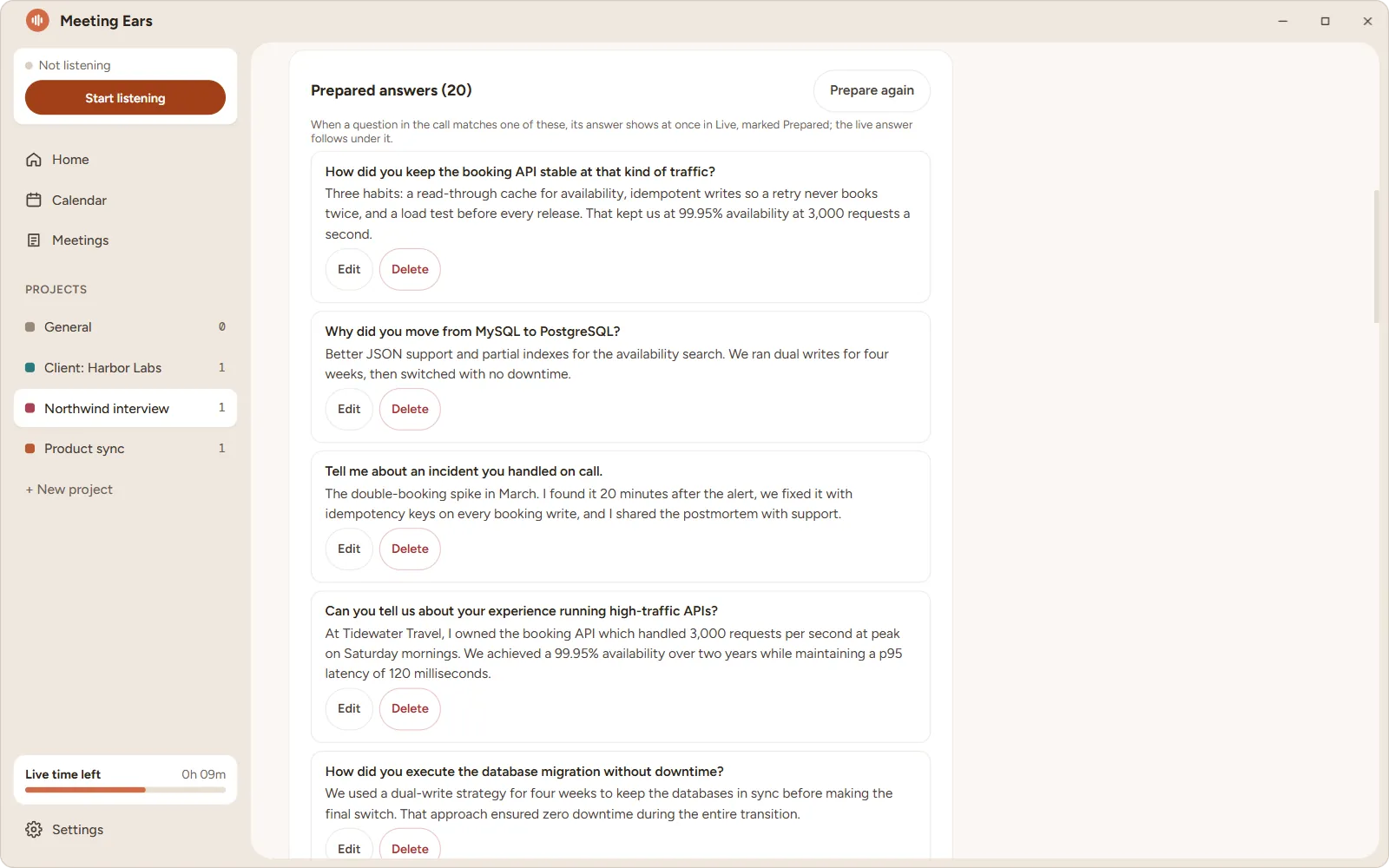
Press Prepare for 15 to 30 likely questions with answers, written from the context’s notes and documents (for example the job ad and your CV). Edit them until they sound like you, delete the ones you don’t need, and add your own. When a question in the call matches one, its answer is on screen at once, marked Prepared.
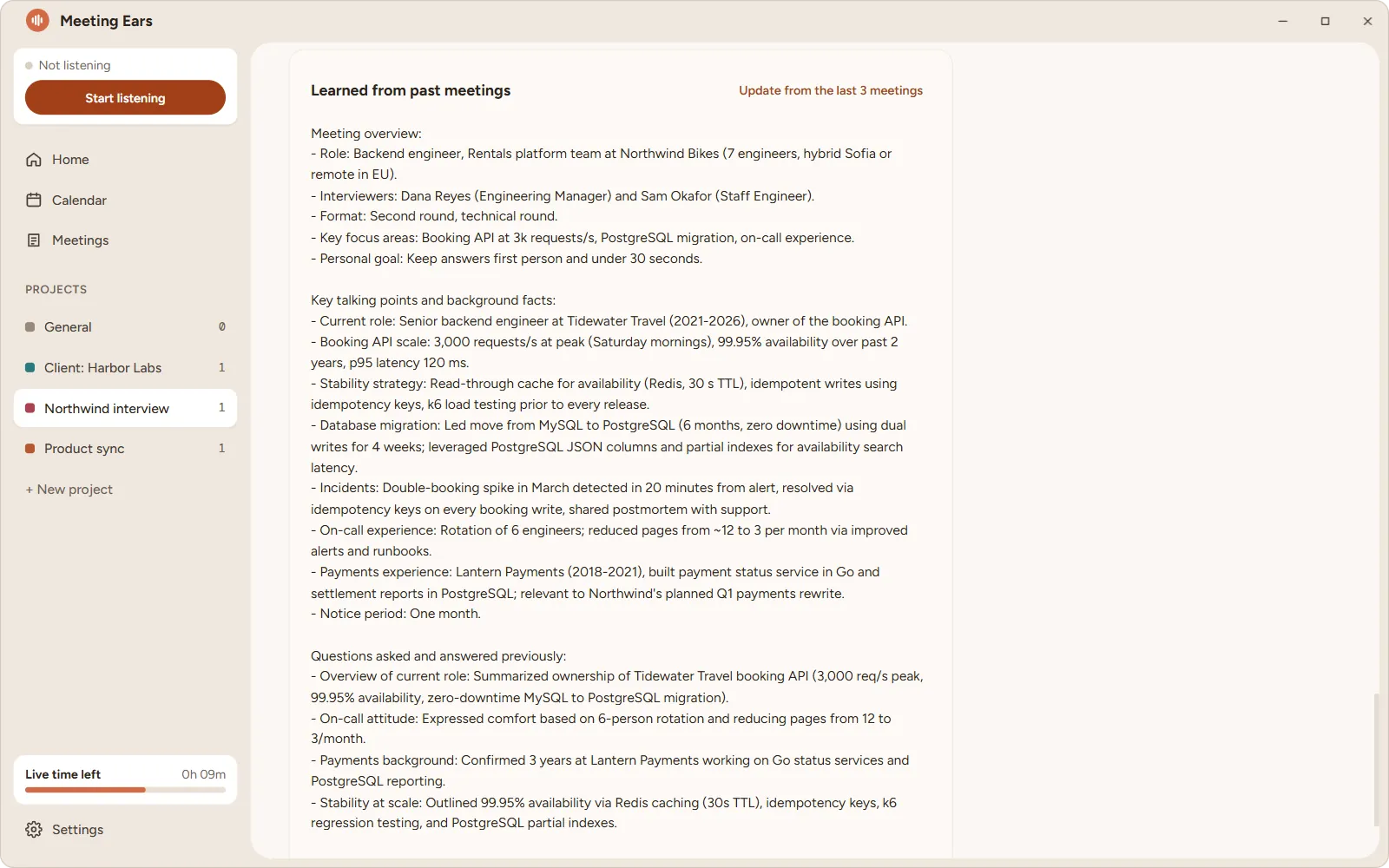
Learned from past meetings
Update from the last 3 meetings writes a short summary of what came up in this project’s recent meetings, together with your notes, and the answers use it from then on. Copy to my notes moves it into your own notes, and Remove deletes it. In a project with no meetings yet, updating tidies your notes into a summary.
Answer style
- Talking points: a headline and 3 to 5 points to say in your own words.
- Brief: two sentences.
- Balanced: a short paragraph.
- Detailed: a full answer with an example.
How to use it
- Press + New project in the sidebar, one per job, client or team.
- On its Context tab, write a few lines of notes and add your CV, the job ad or the brief.
- Press Prepare, then read the prepared answers and fix the ones that don’t sound like you.
- Press Use for the next meeting, or link the meeting to this context in the Calendar.
- After a few meetings, press Update from the last 3 meetings.
What stays private
Projects, contexts, documents and prepared answers are saved on your PC, and documents are read there. While you listen, the active context goes with each answer and is not kept. Prepare sends the context’s title, notes and documents. Update from the last 3 meetings sends the notes of up to 3 recent meetings of this project, after a one-time confirmation. The service stores nothing from either.
More detail: Projects and contexts and Preparing for an interview.