On your PC only
- Transcripts, answers and meeting summaries: everything in Meetings.
- Projects and contexts: notes, documents (their text is read on your PC), prepared answers and what was learned from past meetings.
- Your calendar events, with the calendar access encrypted by Windows.
- Your follow-ups on Home, the search on Meetings, and the files you Export.
Meetings are kept for as long as you choose in Settings (30 days, 90 days or forever), and Delete all history removes them. We have no access to these files, and we don’t sync or back them up.
While you listen
The overlay streams the live audio (your microphone and the PC sound), the meeting’s context and the recent transcript to the Meeting Ears service. The service uses Google Gemini to transcribe the call and write the answers, and it stores none of it. The same goes for buttons that work on the current material: Prepare sends a context’s title, notes and documents, Prep brief sends one meeting’s invitation with its context, and Translate sends the lines you chose.
The service keeps your account, your plan and how much time you used. It never keeps your audio, transcripts or answers.
Notes of past meetings: two buttons, only when you press them
| Button | What it sends | Kept by the service |
|---|---|---|
| Update from the last 3 meetings (Regenerate context), on a project’s Context tab | The notes of up to 3 recent meetings of that project, after you confirm once | Nothing; the summary is saved in the context on your PC |
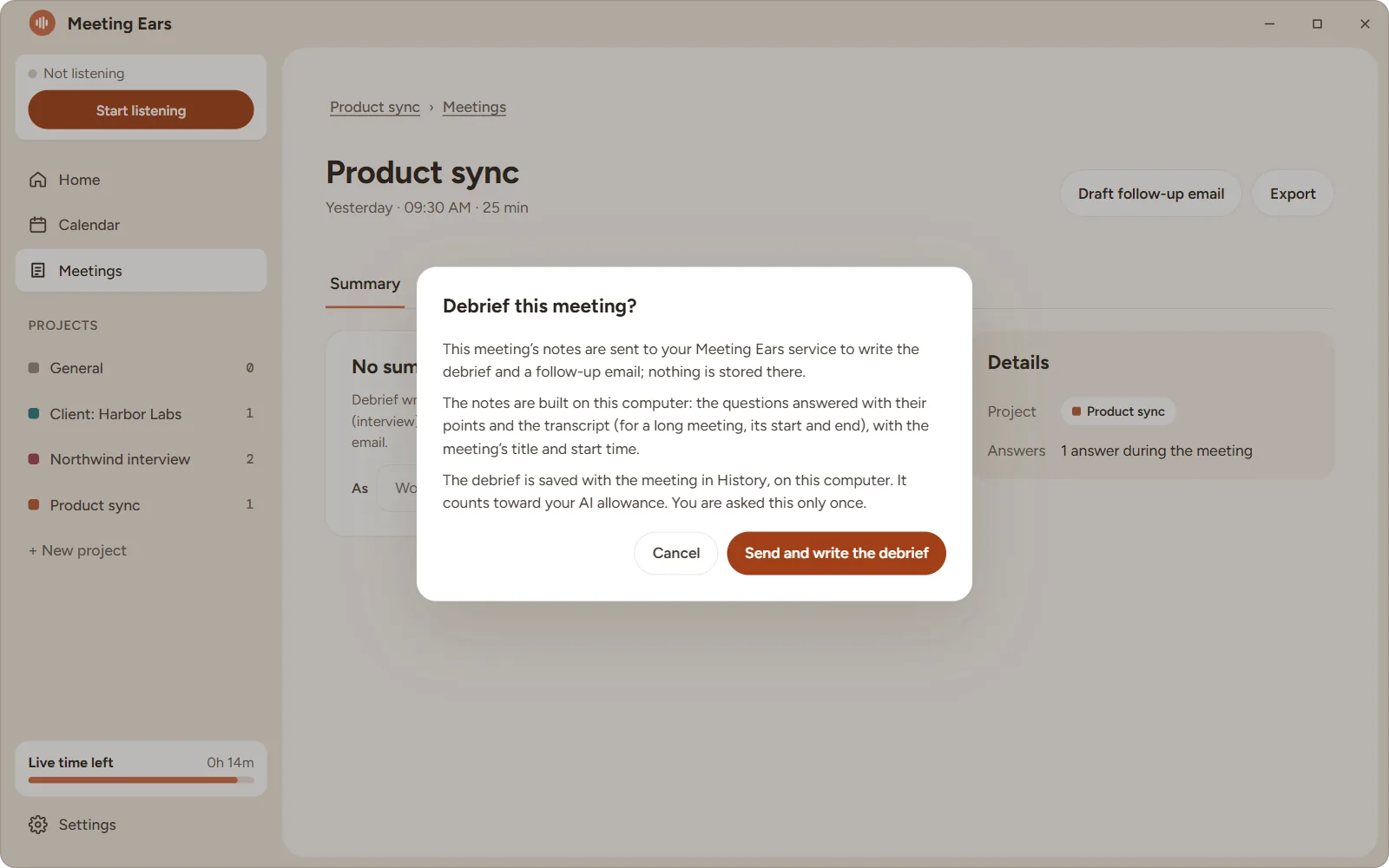
| Debrief, on one meeting’s page | That one meeting’s notes, after you confirm once | Nothing; the debrief is saved with the meeting on your PC |
The notes are built on your PC: the questions answered with their points and the transcript. Nothing else ever sends your saved meetings, projects or the app’s logs anywhere.
Where the service runs
- The Meeting Ears service runs on Google Cloud in Belgium (europe-west1); account records are kept in Google’s EU multi-region.
- The Gemini models are currently reached through Google’s global endpoint, so the AI processing may take place outside the EU. We are working on keeping it in the EU.
- We don’t use your meetings to train AI models.
How to use it
- In Settings, choose how long meetings are kept.
- Use Delete all history to remove every saved transcript and answer.
- Remove a document from a context when it shouldn’t go with the answers any more.
- When the notice before the first Debrief or Update appears, press Cancel to send nothing.
What stays private
The overlay and the workspace are left out of screen shares and screenshots on Windows 11 and Windows 10 (version 2004 or later). The people on the call are part of the audio, so tell them you use Meeting Ears, and ask for consent where the law requires it: see Acceptable use.
The full detail: Privacy and data, and the privacy policy.